
微信小程序开发实战——实现表单页面
问题背景
本文将介绍如何在微信小程序开发中,实现一般的表单页面。
问题分析
话不多说,先上效果图,主要包括基本的表单item、列表框选择数据、选择本地图片等功能。
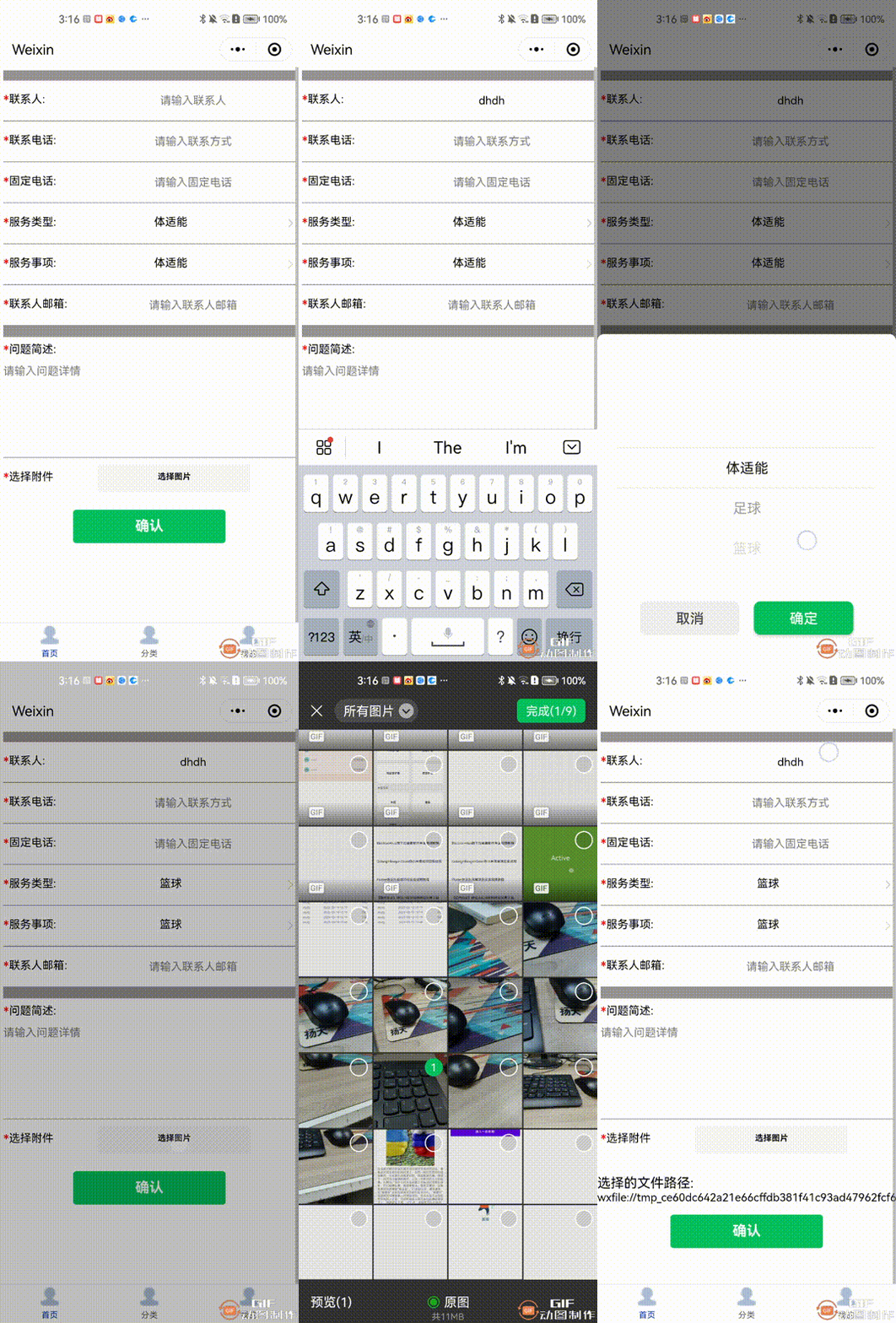
问题解决
完整代码如下:
(1)index.wxml文件,代码如下:
* 联系人: * 联系电话: * 固定电话: * 服务类型: {{arr[index]}} * 服务事项: {{arr[index]}} * 联系人邮箱: * 问题简述: * 选择附件 选择的文件路径: {{path}} (2)index.wxss文件,代码如下:
.outLayer{margin:10rpx;display:flex;flex-direction: column;background: rgb(153, 149, 149);/* border-top: 3rpx solid lightgrey; */
}.lineItemFirst{margin-top:25rpx;height: 100rpx;display: flex;flex-direction: row;align-items: center;justify-content: space-between;background-color: white;/* border-bottom: 1rpx solid lightgrey; */
}.lineItem{margin-top:3rpx;height: 100rpx;display: flex;flex-direction: row;align-items: center;justify-content: space-between;background-color: white;/* border-bottom: 1rpx solid lightgrey; */
}.kindInfo{height: 40rpx;display: flex;flex-direction: row;justify-content: flex-start;
}.fileKindInfo{height: 40rpx;display: flex;flex-direction: column;justify-content: flex-start;
}.ringItem{height: 70rpx;color: red;
}.KindItem{height: 70rpx;font-size: smaller;
}.kindInfoQuestion{margin-top: 15rpx;height: 40rpx;display: flex;flex-direction: row;justify-content: flex-start;
}.inputItem{height: 70rpx;font-size: smaller;width: 70%;text-align: center;
}.inputItemBig{margin-top: 10rpx;font-size: smaller;
}.picker{height: 40rpx;font-size: smaller;width: 70%;text-align: center;
}.colItem{margin-top:30rpx;height: 300rpx;display: flex;flex-direction: column;justify-content: flex-start;background-color: white;/* border-bottom: 1rpx solid lightgrey; */
}.scroll-view_H {/*设置display:flex无效*/height: 100vh;padding-bottom: 150rpx;
}.selectImg{width: 25rpx;height: 25rpx;
}.btnChooseFile{height: 70rpx;width: 30rpx;font-size: x-small;
}.btnItem{margin: 30rpx;margin-bottom: 50rpx;
}.fileItem{margin-top:3rpx;height: 100rpx;display: flex;flex-direction: row;align-items: center;justify-content: space-between;background-color: white;/* border-bottom: 1rpx solid lightgrey; */
}.fileInfo{height: 40rpx;display: flex;width: 30%;flex-direction: row;justify-content: flex-start;
}.fileNameItem{display: flex;flex-direction: column;flex-wrap: wrap;height: 70rpx;font-size: smaller;
}
(3)index.js文件,代码如下:
// pages/pubu/pubu.js
Page({/*** 页面的初始数据*/data: {publishInfoList: [],arr:['体适能','足球','篮球','乒乓球'],index:0,path:"",hasFile: false,},/*** 生命周期函数--监听页面加载*/onLoad(options) {let f = this;wx.request({url: 'https://geoapi.qweather.com/v2/city/lookup?location=beij&key=d4a619bfe3244190bfa84bb468c14316',success(res) {if (res.statusCode == 200) {var allList = res.data.locationf.setData({publishInfoList: allList})}}})},/*** 生命周期函数--监听页面初次渲染完成*/onReady() {},/*** 生命周期函数--监听页面显示*/onShow() {},/*** 生命周期函数--监听页面隐藏*/onHide() {},/*** 生命周期函数--监听页面卸载*/onUnload() {},/*** 页面相关事件处理函数--监听用户下拉动作*/onPullDownRefresh() {},/*** 页面上拉触底事件的处理函数*/onReachBottom() {},/*** 用户点击右上角分享*/onShareAppMessage() {},submitInfo(e) {this.setData({formId: e.detail.formId,},(res) => {})},pickerChange(value) {console.log(value)this.setData({index:value.detail.value})},/*** 选择图片*/onChooseFile() {wx.chooseImage({success:(resp)=>{let imgPath=resp.tempFilePaths;console.log(imgPath);this.setData({path: imgPath, hasFile: true});}})}
})
问题总结
本文介绍了如何在微信小程序开发中,实现一般的表单页面,包括普通列表项、列表选择框、图片选择器等,有兴趣的同学可以进一步深入研究。